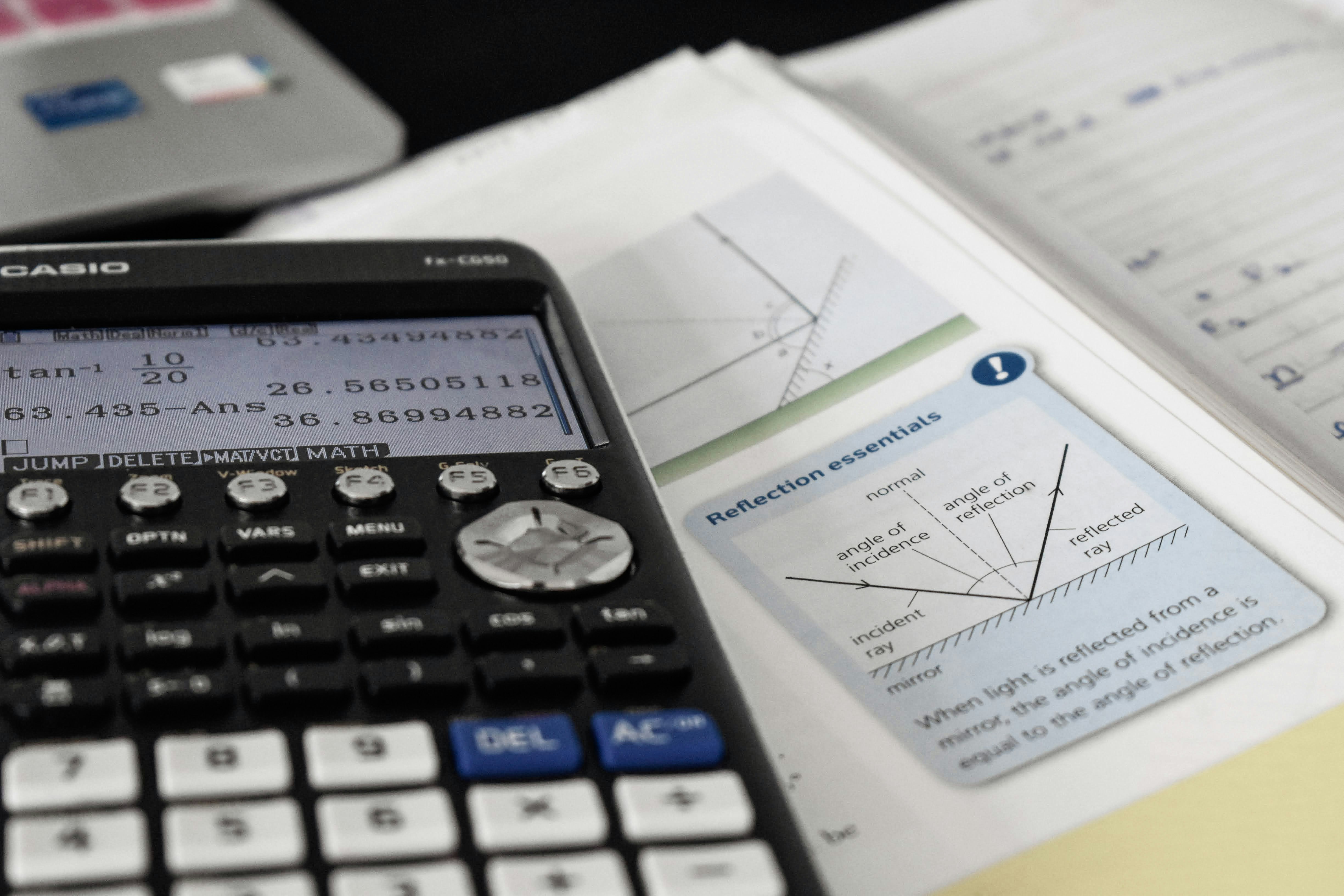
How to Convert Fractions on a Calculator
If you've ever typed a fraction into your calculator and gotten a jumbled decimal you didn't ask for, you're not alone. Learning how to convert fractions on a scientific calculator is one of those small skills that saves you from constant re-typing during homework, exams, or quick job-site calculations. This guide walks you through the exact buttons to press, why they sometimes don't work as expected, and a few tricks most tutorials skip.
By the end, you'll know how to convert fractions to decimals and back, simplify messy fractions instantly, and troubleshoot the most common calculator errors.
Why It's Hard to Convert Fractions on Some Calculators
Most people assume every calculator works the same way. It doesn't. Casio, Texas Instruments, and Sharp models all use different symbols and menu structures for fractions, which is why a method that works for your classmate's calculator might do nothing on yours.
The good news: once you understand the logic behind how to convert fractions, you can apply the same steps to almost any scientific calculator, regardless of brand.
Finding the Fraction Button on Your Calculator
Before you can convert fractions at all, you need to locate the right key. This is usually the step people get stuck on.
Common Fraction Symbols by Brand
- Casio (fx-82/fx-991 series): Look for a key labeled a b/c or S⇔D
- Texas Instruments (TI-30X/TI-36X): Look for UNIT or the fraction template key with a stacked box icon
- Sharp (EL-W series): Usually labeled a b/c as well, sometimes with a secondary function key
Pro tip: If you can't find a dedicated fraction key, check the SHIFT or 2nd function printed above one of your keys — many calculators hide the fraction toggle there instead of giving it a standalone button.
How to Convert Fractions to a Decimal, Step by Step
Here's the most common conversion students need — turning a fraction into its decimal form.
- Enter the numerator (top number)
- Press the fraction key (a b/c or equivalent)
- Enter the denominator (bottom number)
- Press = to see the fraction displayed
- Press S⇔D (or UNIT on TI models) to toggle to the decimal version
For example, entering 3 a b/c 4 and pressing = gives you 3/4. One press of S⇔D converts it instantly to 0.75.
How to Convert Fractions the Other Way: Decimal to Fraction
Going the other direction works almost the same way, but you skip the fraction key entirely.
- Type the decimal number normally (e.g., 0.75)
- Press =
- Press S⇔D to switch the display to fraction form
Not every decimal converts cleanly — repeating decimals like 0.333... will usually round to the nearest simple fraction rather than showing an exact infinite repeat.
How to Convert Fractions That Are Mixed Numbers
Mixed numbers (like 2 ½) confuse a lot of users because they require an extra keystroke most guides don't mention.
To enter 2 ½:
- Type 2
- Press the fraction key
- Type 1
- Press the fraction key again
- Type 2
- Press =
This produces the mixed number display. Pressing S⇔D afterward converts it to the improper fraction (5/2) or decimal (2.5), depending on how many times you press it — some models cycle through all three formats.
Simplifying Fractions Automatically
One thing many users don't realize: you don't need to simplify fractions manually. Most scientific calculators automatically reduce a fraction to its lowest terms the moment you press =.
Type in 8 a b/c 12, for instance, and the calculator will display 2/3 without any extra steps. If your calculator isn't simplifying automatically, check your MODE settings — some models have a "manual simplify" mode where you repeatedly press a FACT or SIMP key to reduce the fraction one step at a time.
Common Mistakes People Make When They Convert Fractions
These are the errors I see most often, based on how these calculators actually behave in practice:
- Mixing up the fraction key with the division key. They look similar but produce completely different results — division gives a flat decimal, the fraction key preserves the fraction format.
- Forgetting to clear the display (AC) between problems. Leftover values can attach to your new fraction and throw off the result.
- Assuming S⇔D is universal. On some Sharp and Casio budget models, this toggle is instead a SHIFT + a number key combination.
- Not checking calculator MODE before starting. If your calculator is in a specialized mode (like STAT or complex number mode), fraction conversion may not display correctly until you reset to COMP or NORMAL mode.
Unique Insight: What Most Guides Don't Tell You
Here's something rarely covered in standard tutorials: your calculator's fraction display setting affects how test answers are graded in many classroom settings. Some teachers require answers in simplified fraction form, not decimal — if your calculator defaults to decimal display after a battery change or reset, you could lose points for a technically correct answer in the "wrong" format.
Fix: After any reset, do a quick test conversion (like 1 a b/c 2) before your exam to confirm your calculator is displaying in the format your teacher expects.
Another overlooked detail: on Casio's newer natural display models (fx-991EX and similar), fractions appear as stacked visual fractions rather than inline text. This looks different from older models but works with the same button logic — don't assume your calculator is broken just because the fraction "looks" unfamiliar.
Quick Reference Table
| Calculator Brand | Fraction Key | Toggle to Decimal |
|---|---|---|
| Casio fx-82/991 | a b/c | S⇔D |
| Texas Instruments TI-30X | Fraction template key | UNIT |
| Sharp EL-W series | a b/c | SHIFT + a b/c |
Final Takeaway
Learning to convert fractions on a scientific calculator comes down to two keys: the fraction key to enter your numbers correctly, and the S⇔D toggle to switch formats. Once you memorize where these live on your specific model, the whole process takes seconds.
Expert tip: Test your calculator's fraction settings before an exam or job task, not during it. A ten-second check now can save you from a formatting mistake when it actually counts.